Home Assistant dashboard:
Wake-up alarm light

Here you find an explanation of a Home Assistant dashboard with an alarm timer on it which can be changed via the dashboard itself. This way dashboard users can make modifications to the ON and OFF time of an entity.
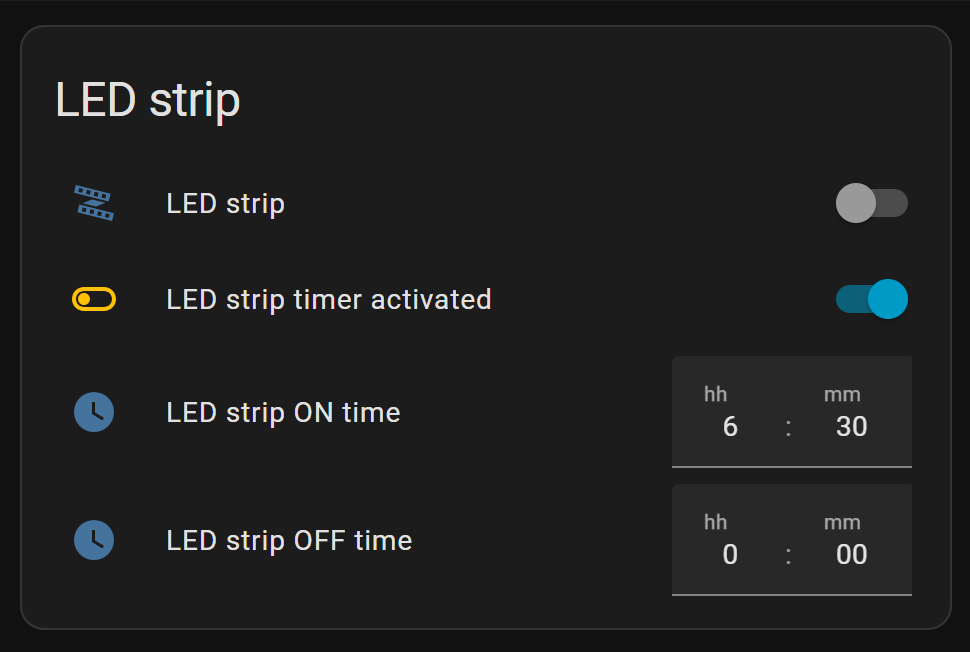
This can be used, for example, as wake-up ceiling LED strip light. Any automation can be triggered on this time! Start streaming a radio channel, make a coffee, announce the weather forecast, news, or traffic.
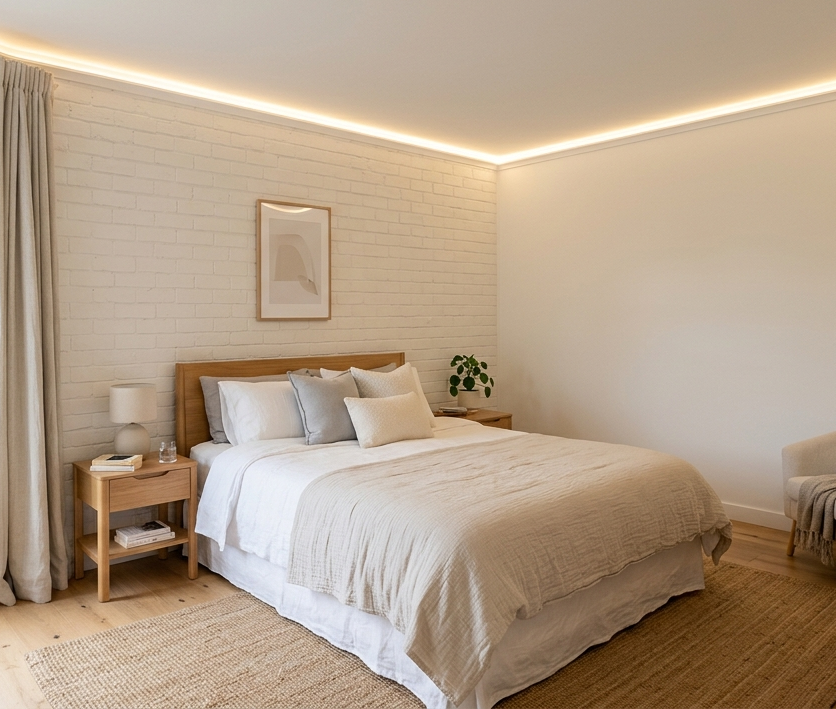
Table of Contents
Hardware
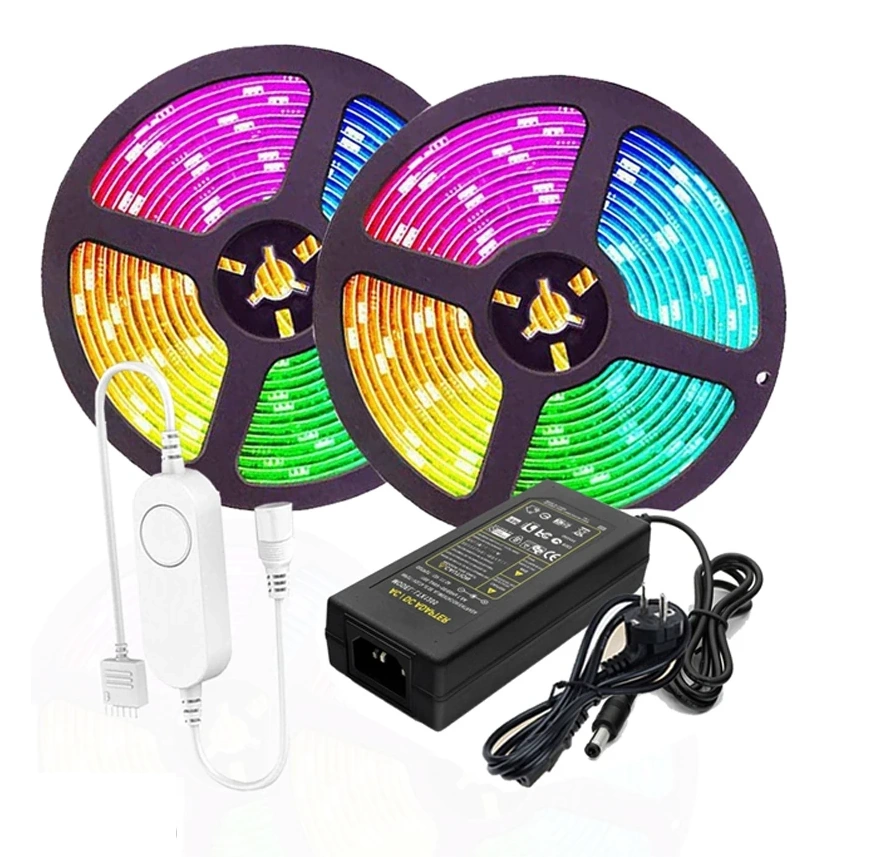
The hardware I used for this project is a dumb LED strip, modified to work directly on power without a switch and controlled by a smart socket. As alternative a smart LED strip controlled by Zigbee/WiFi can also be used for it.
With a smart wireless button it’s possible to manually control the LED strip state.
Home Assistant config
To define the timer and (de)activate toggle on the dashboard, custom helper entities are created.
Dashboard
This is how the final dashboard could look like. Manual trigger the LED strip, toggle the timer. And set the ON and OFF time.
You can easily add more times if you prefer.
This is the corresponding YAML code:
# Sourcecode by vdbrink.github.io
# Dashboard Entities card configuration YAML
type: entities
entities:
  - entity: switch.blitzsmartplug_led
  - entity: input_boolean.wake_up_active
  - entity: input_datetime.ledstrip_on_time
  - entity: input_datetime.ledstrip_off_time
state_color: true
title: LED strip
show_header_toggle: false
Entities
The dashboard is built up of four entities:
- An entity to control the LED strip.
- In this case
switch.blitzsmartplug_led
- In this case
- A helper entity for the time the LED strip will be turned ON.
- In this case
input_datetime.ledstrip_on_time
- In this case
- A helper entity for the time the LED strip will be turned OFF.
- In this case
input_datetime.ledstrip_off_time
- In this case
- (Optional) A helper entity to skip the timer.
- In this case
input_boolean.wake_up_active
- In this case
In the next chapters I’ll explain how to create these helpers.
Timer helper entities
First, we create a time selector on the dashboard.
Go to the Settings menu item,
then go to Devices and Services and select Helpers in the top bar.
This button directly opens the Helpers page in your Home Assistant:

Select the bottom-right button + Create Helper, select Date and/or time.
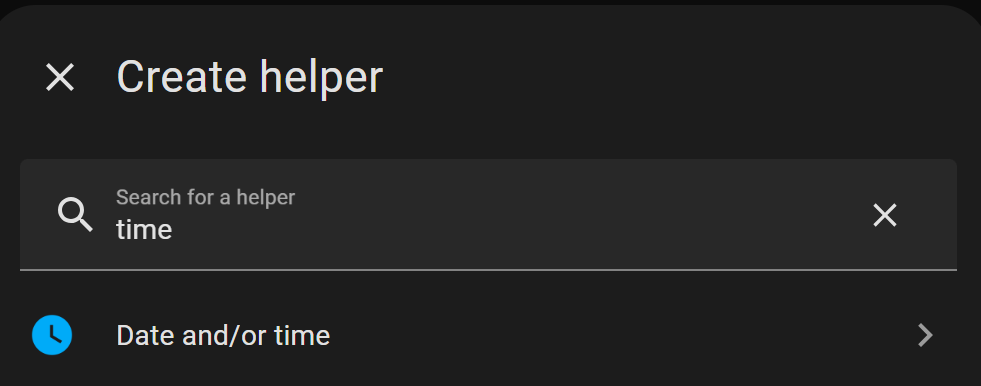
Give it a name (this will also automatically be used for the entity name).
Optional select an icon, like mdi:clock.
Select the input type Time.
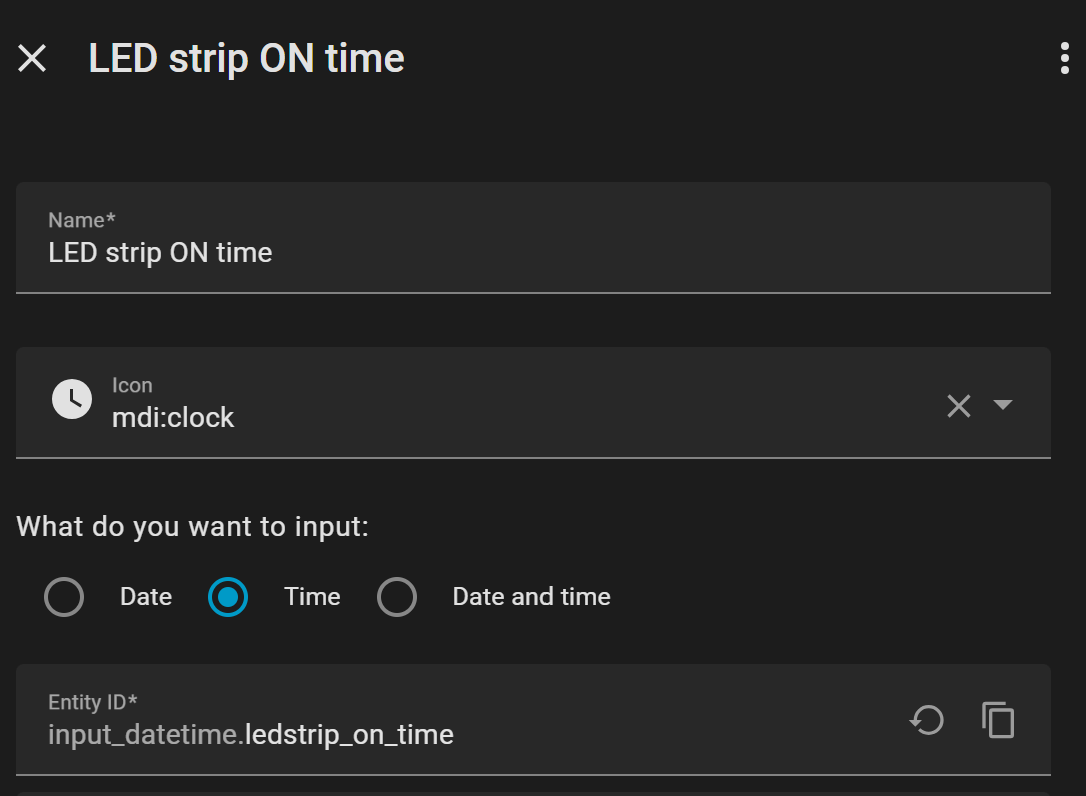
Follow the same steps to also create the OFF helper entity.
Boolean helper entity
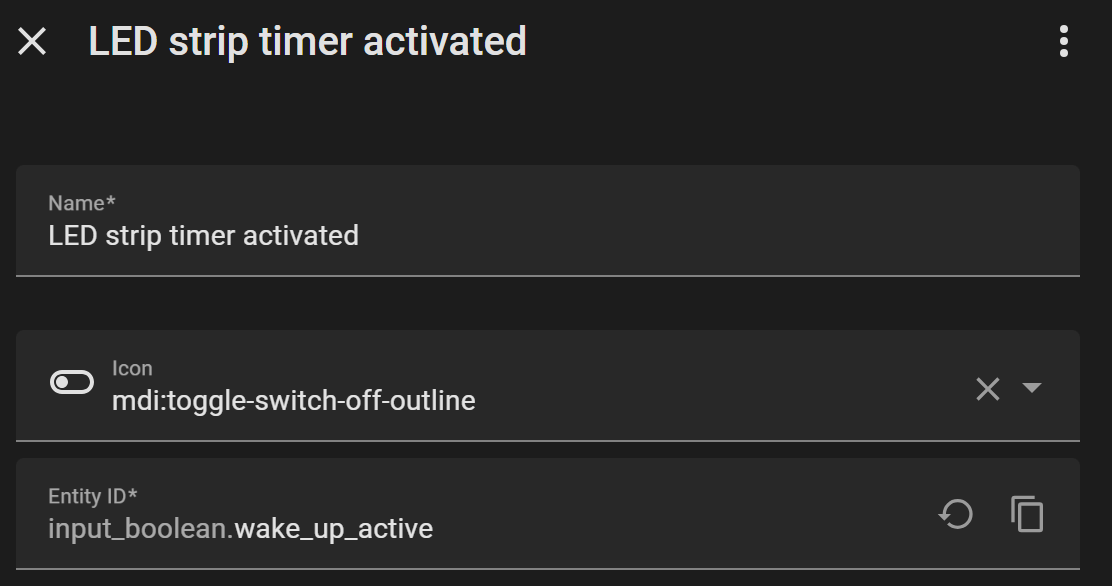
For the extra helper to skip the ON/OFF timer (on a free day for example).
Create a new helper and this one should be of the type Boolean.
This entity has two states: true for active, false for inactive.
Automation
I have my automations in Node-RED.
I use the created HA helpers as Nodes in my automation flows.
This is my flow:
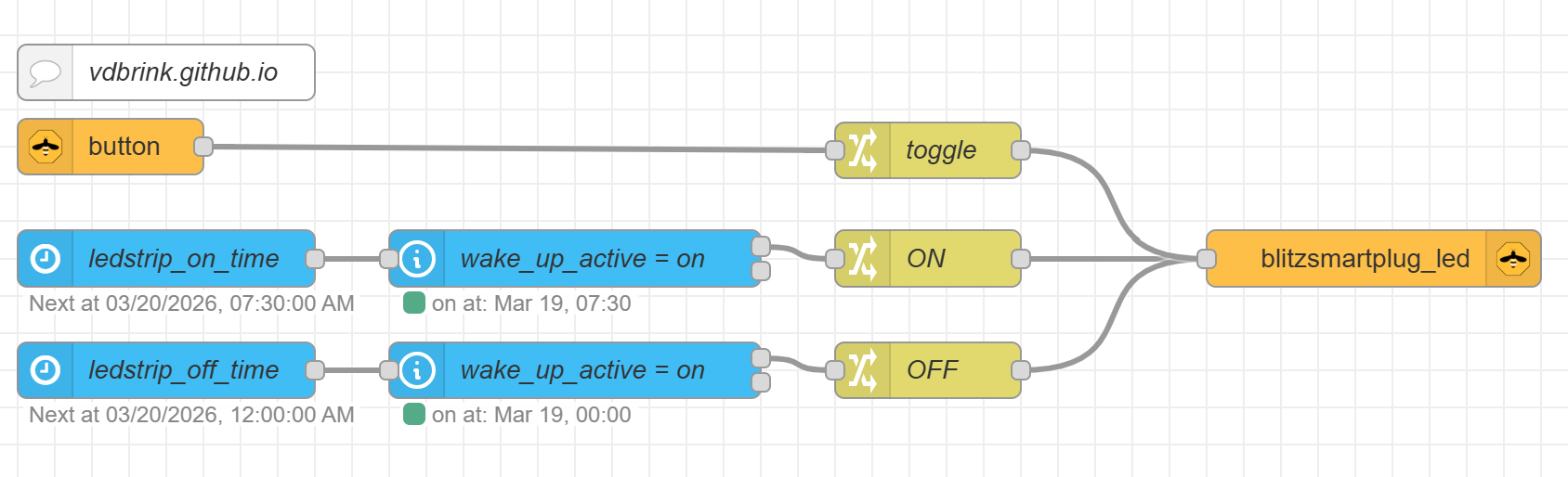
The first flow, to control the LED strip manually with a smart button, is built up with these nodes:
- In node (this node is part of the module
node-red-contrib-zigbee2mqtt) which is triggered when the button is pressed. - Change node to set the state
toggleto the payload.
The second flow, to turn ON the LED strip based on the ON time, is built up with these nodes:
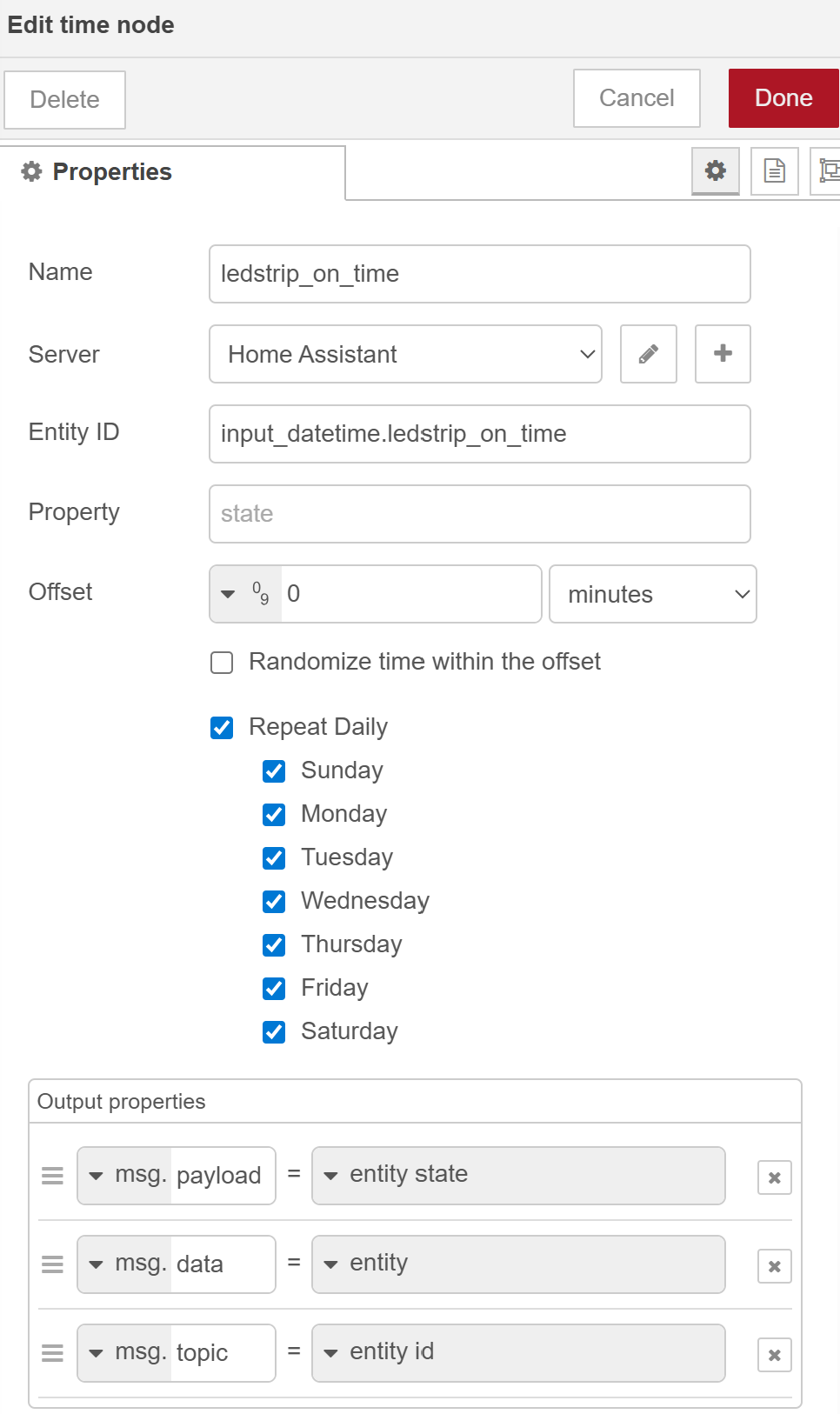
- HA time node which is triggered at the defined ON time.
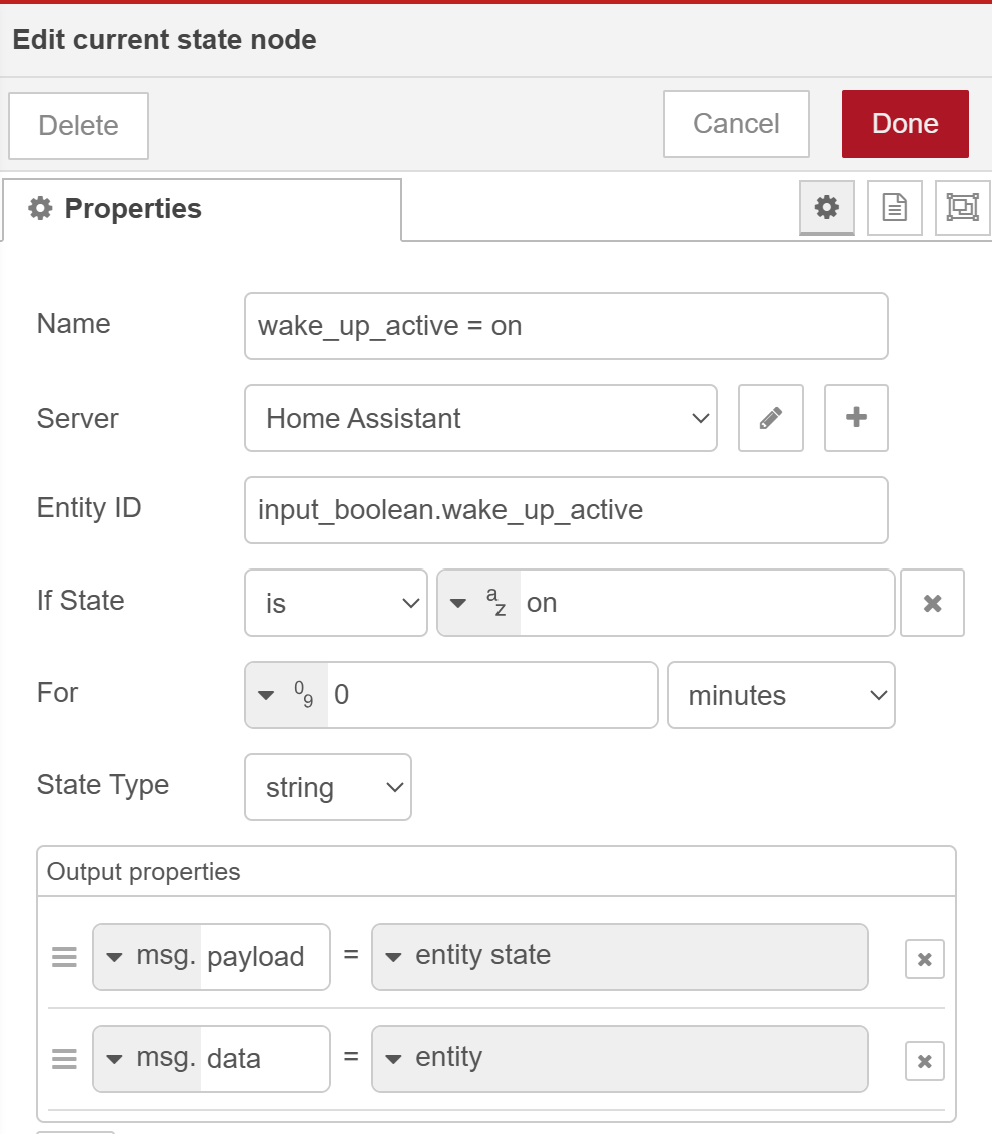
- HA current state node which checks of the flow should continue or stop.
- Change node to set the state
ONto the payload. - Zigbee2MQTT out node where the smart socket or LED strip is defined.
The third flow, to turn OFF the LED strip based on the OFF time, is built up with these nodes:
- HA time node which is triggered at the defined OFF time.
- HA current state node which checks of the flow should continue or stop.
- Change node to set the state
OFFto the payload. - Zigbee2MQTT out node where the smart socket or LED strip is defined.
This is the config of the HA time node which triggers an event when the defined time is reached:
This is the config of the HA current state node which checks if the timer should be active:
The corresponding Node-RED JSON code:
[{"id":"0458588aeb772415","type":"ha-time","z":"fe336467d8c9e5e7","name":"ledstrip_on_time","server":"969e9e50.88897","version":3,"exposeAsEntityConfig":"","entityId":"input_datetime.ledstrip_on_time","property":"","offset":"0","offsetType":"num","offsetUnits":"minutes","randomOffset":false,"repeatDaily":true,"outputProperties":[{"property":"payload","propertyType":"msg","value":"","valueType":"entityState"},{"property":"data","propertyType":"msg","value":"","valueType":"entity"},{"property":"topic","propertyType":"msg","value":"","valueType":"triggerId"}],"sunday":true,"monday":true,"tuesday":true,"wednesday":true,"thursday":true,"friday":true,"saturday":true,"x":100,"y":200,"wires":[["19ad4e20fd4bd0e6"]]},{"id":"a95bd8de81466cf6","type":"ha-time","z":"fe336467d8c9e5e7","name":"ledstrip_off_time","server":"969e9e50.88897","version":3,"exposeAsEntityConfig":"","entityId":"input_datetime.ledstrip_off_time","property":"","offset":"0","offsetType":"num","offsetUnits":"minutes","randomOffset":false,"repeatDaily":true,"outputProperties":[{"property":"payload","propertyType":"msg","value":"","valueType":"entityState"},{"property":"data","propertyType":"msg","value":"","valueType":"entity"},{"property":"topic","propertyType":"msg","value":"","valueType":"triggerId"}],"sunday":false,"monday":true,"tuesday":true,"wednesday":true,"thursday":true,"friday":true,"saturday":false,"x":100,"y":260,"wires":[["0d6d1a13fa8cdd83"]]},{"id":"19ad4e20fd4bd0e6","type":"api-current-state","z":"fe336467d8c9e5e7","name":"wake_up_active = on","server":"969e9e50.88897","version":3,"outputs":2,"halt_if":"on","halt_if_type":"str","halt_if_compare":"is","entity_id":"input_boolean.wake_up_active","state_type":"str","blockInputOverrides":false,"outputProperties":[{"property":"payload","propertyType":"msg","value":"","valueType":"entityState"},{"property":"data","propertyType":"msg","value":"","valueType":"entity"}],"for":"0","forType":"num","forUnits":"minutes","override_topic":false,"state_location":"payload","override_payload":"msg","entity_location":"data","override_data":"msg","x":320,"y":200,"wires":[["ba2620444a93c308"],[]]},{"id":"0d6d1a13fa8cdd83","type":"api-current-state","z":"fe336467d8c9e5e7","name":"wake_up_active = on","server":"969e9e50.88897","version":3,"outputs":2,"halt_if":"on","halt_if_type":"str","halt_if_compare":"is","entity_id":"input_boolean.wake_up_active","state_type":"str","blockInputOverrides":false,"outputProperties":[{"property":"payload","propertyType":"msg","value":"","valueType":"entityState"},{"property":"data","propertyType":"msg","value":"","valueType":"entity"}],"for":"0","forType":"num","forUnits":"minutes","override_topic":false,"state_location":"payload","override_payload":"msg","entity_location":"data","override_data":"msg","x":320,"y":260,"wires":[["113c0428cf1ff845"],[]]},{"id":"ba2620444a93c308","type":"change","z":"fe336467d8c9e5e7","name":"ON","rules":[{"t":"set","p":"payload","pt":"msg","to":"ON","tot":"str"}],"action":"","property":"","from":"","to":"","reg":false,"x":510,"y":200,"wires":[["a7f5291a94c9c1e5"]]},{"id":"113c0428cf1ff845","type":"change","z":"fe336467d8c9e5e7","name":"OFF","rules":[{"t":"set","p":"payload","pt":"msg","to":"OFF","tot":"str"}],"action":"","property":"","from":"","to":"","reg":false,"x":510,"y":260,"wires":[["a7f5291a94c9c1e5"]]},{"id":"a7f5291a94c9c1e5","type":"zigbee2mqtt-out","z":"fe336467d8c9e5e7","name":"blitzsmartplug_led","server":"4ec1da88.92f82c","friendly_name":"blitzsmartplug27 (TS011F_plug_3)","device_id":"0xb0c7defffe5ecdf9","command":"state","commandType":"z2m_cmd","payload":"payload","payloadType":"msg","optionsValue":"","optionsType":"nothing","x":750,"y":200,"wires":[]},{"id":"409bab4984395b68","type":"change","z":"fe336467d8c9e5e7","name":"toggle","rules":[{"t":"set","p":"payload","pt":"msg","to":"toggle","tot":"str"}],"action":"","property":"","from":"","to":"","reg":false,"x":510,"y":142,"wires":[["a7f5291a94c9c1e5"]]},{"id":"392c626c1e2e3696","type":"comment","z":"fe336467d8c9e5e7","name":"vdbrink.github.io","info":"","x":100,"y":100,"wires":[]},{"id":"3b55a1125e9867ab","type":"zigbee2mqtt-in","z":"fe336467d8c9e5e7","name":"button","server":"4ec1da88.92f82c","friendly_name":"button","device_id":"0x00158d0004506cbd","state":"action","outputAtStartup":false,"filterChanges":false,"enableMultiple":false,"x":70,"y":140,"wires":[["409bab4984395b68"]]},{"id":"969e9e50.88897","type":"server","name":"Home Assistant","version":5,"addon":false,"rejectUnauthorizedCerts":true,"ha_boolean":"y|yes|true|on|home|open","connectionDelay":false,"cacheJson":true,"heartbeat":false,"heartbeatInterval":"30","areaSelector":"friendlyName","deviceSelector":"friendlyName","entitySelector":"friendlyName","statusSeparator":"at: ","statusYear":"hidden","statusMonth":"short","statusDay":"numeric","statusHourCycle":"h23","statusTimeFormat":"h:m","enableGlobalContextStore":true},{"id":"4ec1da88.92f82c","type":"zigbee2mqtt-server","name":"mosquitto","host":"mosquitto","mqtt_port":"1883","mqtt_username":"","mqtt_password":"","mqtt_qos":"0","tls":"","usetls":false,"base_topic":"zigbee2mqtt"},{"id":"b9de7727efe28289","type":"global-config","env":[],"modules":{"node-red-contrib-home-assistant-websocket":"0.59.0","node-red-contrib-zigbee2mqtt":"2.7.1"}}]
« See also my other Home Assistant tips and tricks
^^ Top | Homepage | Best Buy Tips | Automation Ideas | Blog posts | Sitemap