Elgato Stream Deck
For a software developer
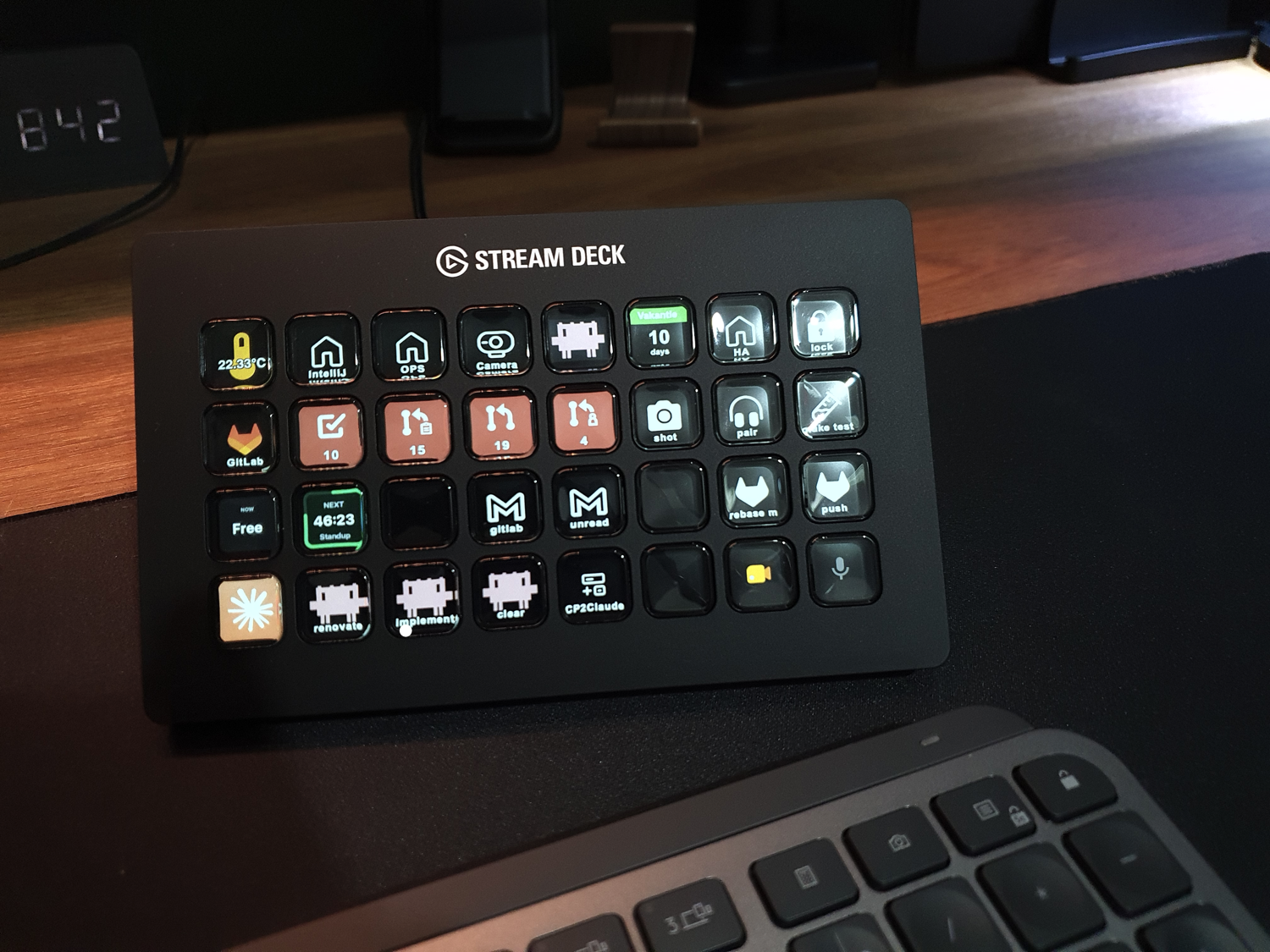 It’s not only programmable shortcut buttons but also information displayed on it.
Introduction
For all my years as a developer, a nice keyboard was good enough for my daily work.
I’ve always enjoyed creating scripts to automate tasks on my PC, phone, and at home, so this button shortcut keypad was a small step for me. I don’t know why it took me so long to find and use it myself!
For example: you can use it to control and visualize your OS, mail, Spotify, AI agents, video calls, IDE, calendar, GitHub, GitLab, Home Assistant and many, many more…
Read on to see how I use this keypad, and whether it is something you didn’t know you wanted too!
Go directly to the sections about:
A keypad with programmable LCD keys to trigger any task with one press.
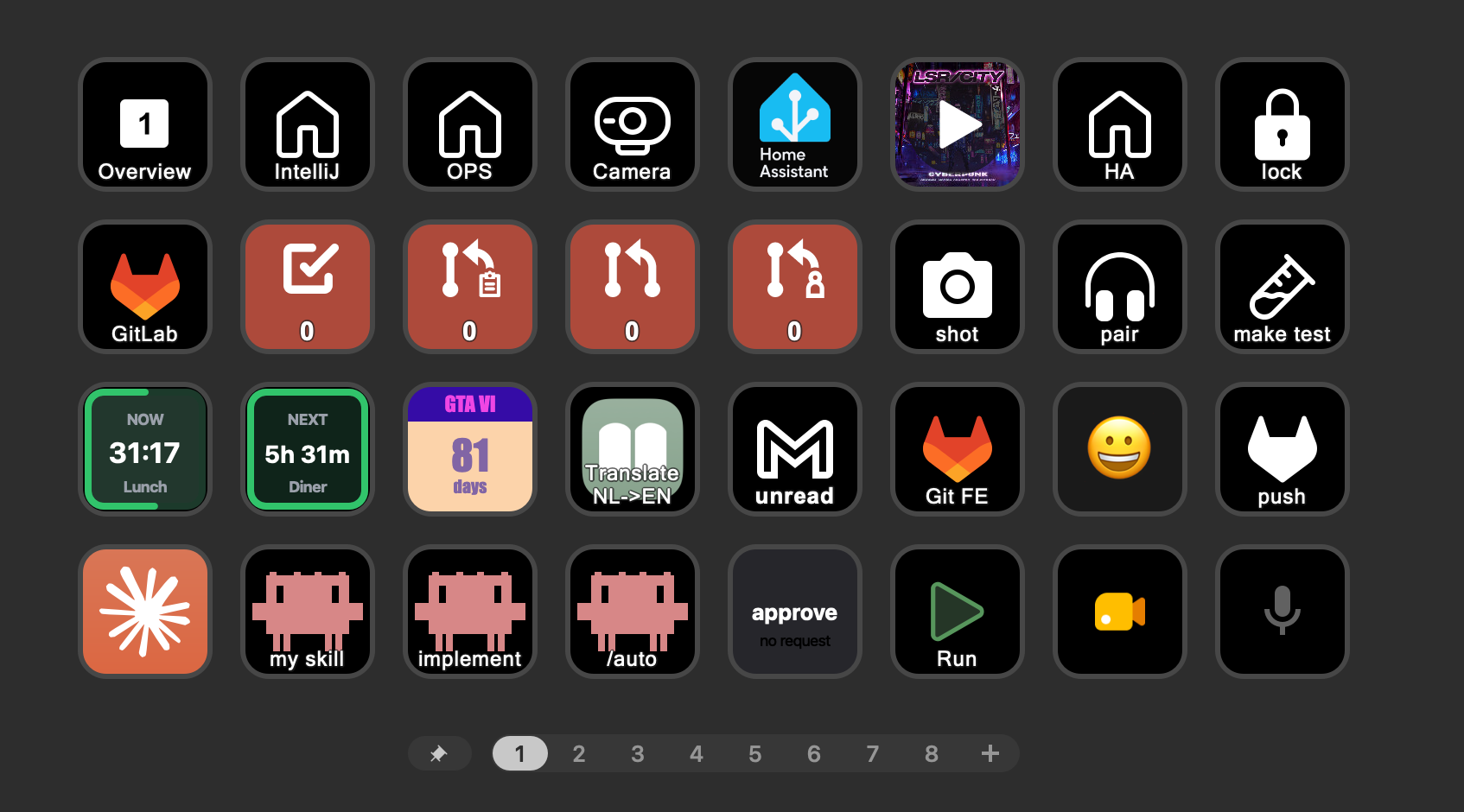
For macOS, Claude, Spotify, GitLab, Google Meet, Home Assistant, Google Mail and more.
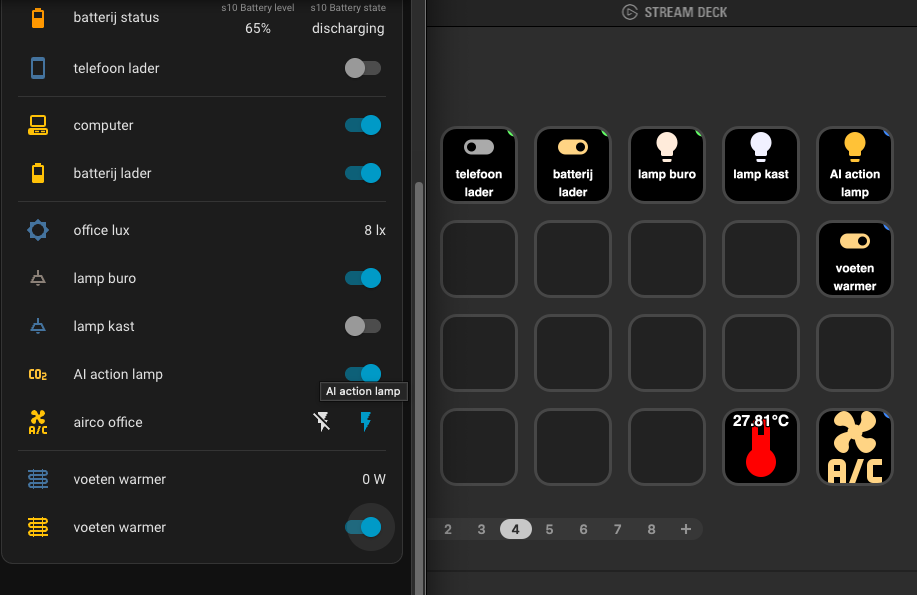
Control and show your lights, devices and see live sensor data on your keys.
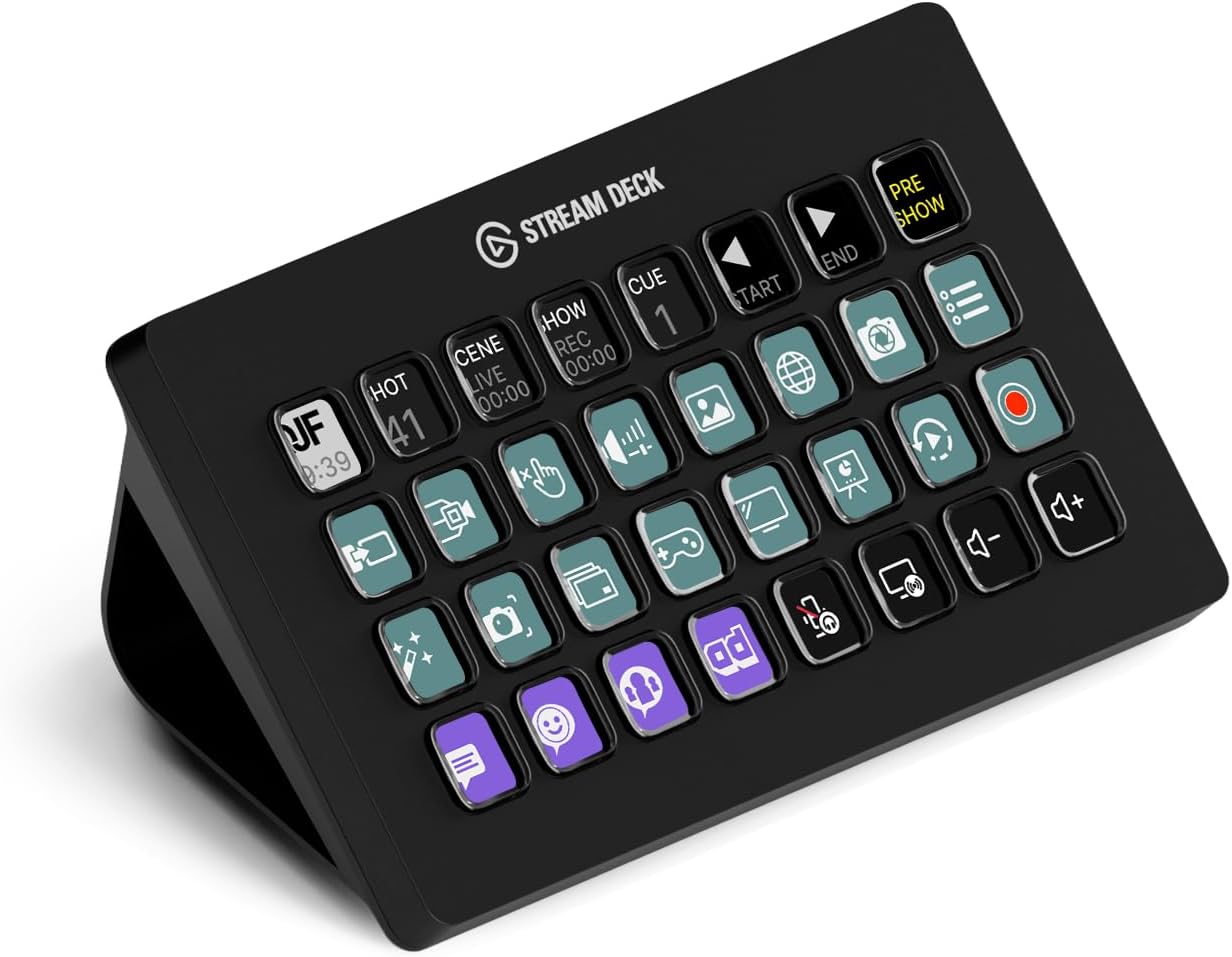
Compare the Stream Deck models, from Mini to XL.
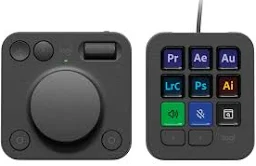
Other keypads, like the Logitech MX Creative Console and MX Keypad.
Table of Contents
- What is a Stream Deck?
- My introduction with a Stream Deck
- Downloadable button actions
- Stream Deck models comparison
- Alternative solutions
- My advised model for a software developer
- My personal ideal model
What is a Stream Deck?
A Stream Deck is a kind of keyboard where you can program each button yourself. This keypad is connected via USB to your computer. The special part is that every button has its own little LCD screen behind it, so instead of a blank key or a static icon, you see an icon, a label, a color or even a live value. One press runs whatever you linked to that button: a keyboard shortcut, a script, multiple steps, an API call or an action from one of the many plugins.
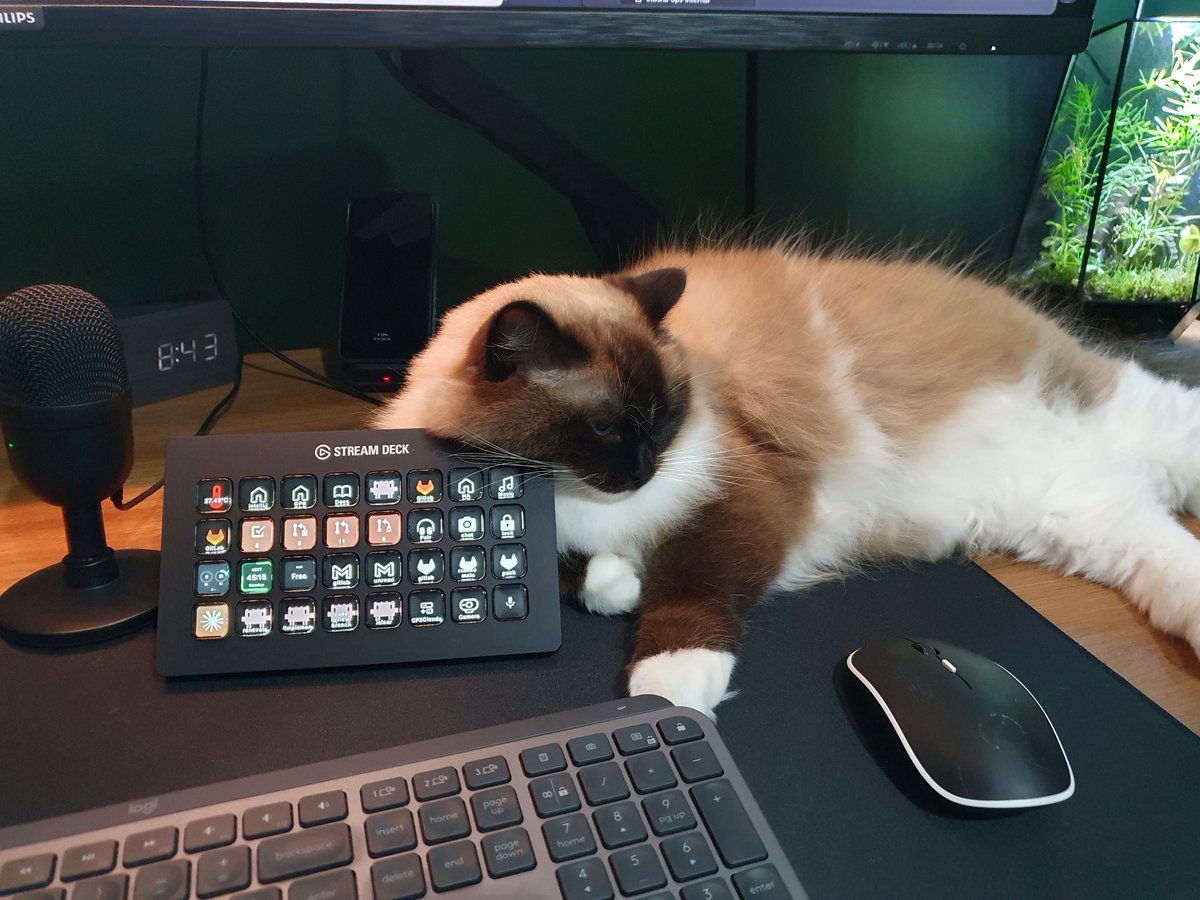 A Stream Deck also works perfectly as a pillow, according my cat.
The device itself doesn’t contain any OS or application, a Stream Deck application runs on the connected computer. This app does all the handling and control of the buttons. Elgato officially supports Windows and macOS, and for Linux there is an open-source solution, OpenDeck. You can’t use it as a standalone device.
Elgato (nowadays part of Corsair) originally built it for live streamers, who need to switch scenes, mute their microphone and fire a sound effect without ever leaving their game. But the device itself doesn’t know anything about streaming, it triggers whatever you configure, and that makes it just as useful for everybody else who repeats the same actions all day: video editors, photographers, musicians, people in endless video calls, home automation tinkerers and software developers!
The problem it solves is that shortcuts don’t scale. You can remember five or ten key combinations, but not fifty, and half of your tools use a different combination for the same thing. On top of that a lot of daily actions aren’t a shortcut at all but a small chore: open this dashboard, run that script, join the standup, set the lights for a call.
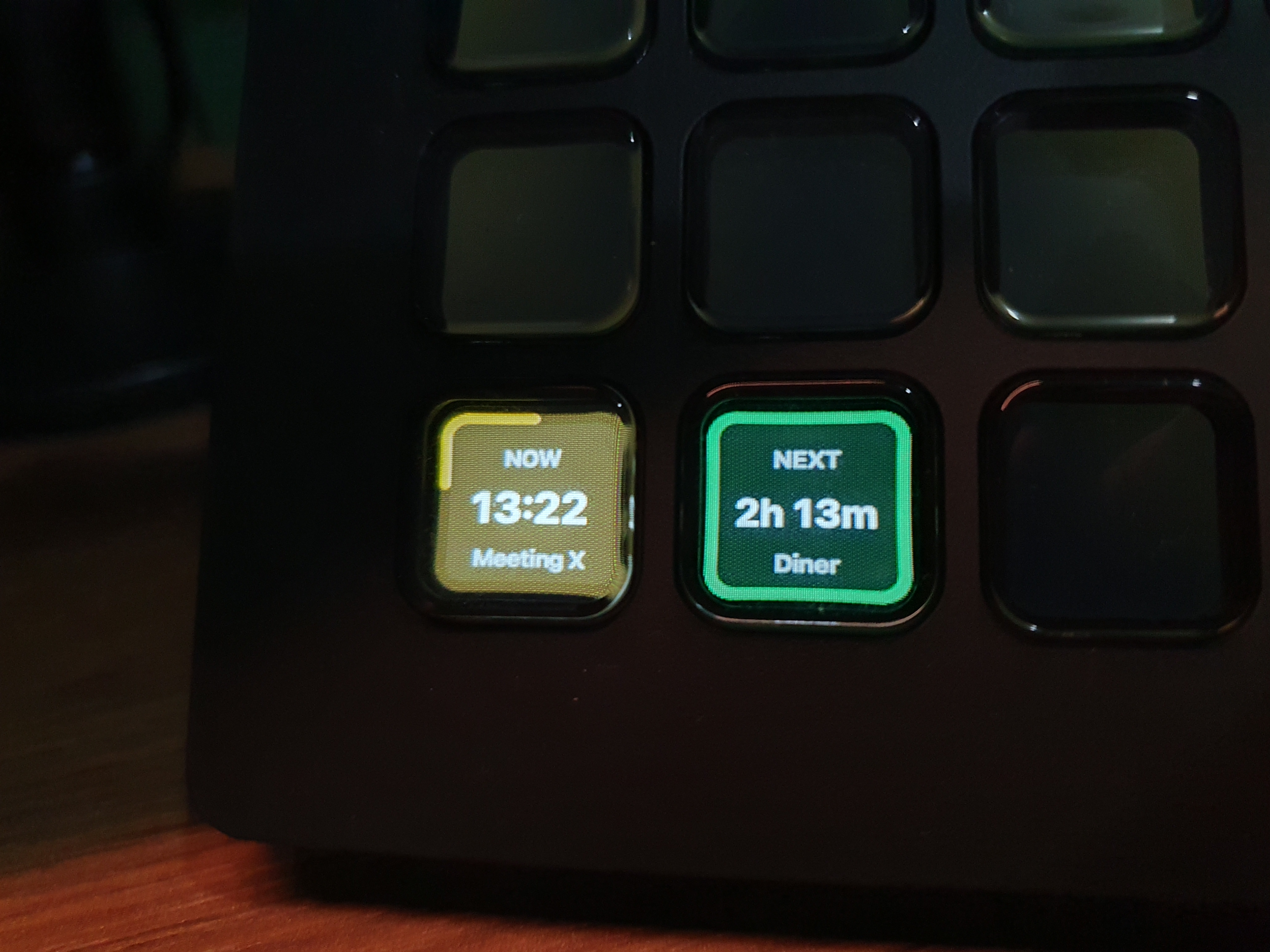
Buttons with live data: how long your current meeting takes and when the next one is.
Because each button shows what it does, you don’t have to remember anything. You just look and press. And with pages and profiles you can give every application its own set of buttons, so the same hardware turns into a different control panel depending on which app you’re working in.
Elgato has different models: with additional buttons, displays and dials.
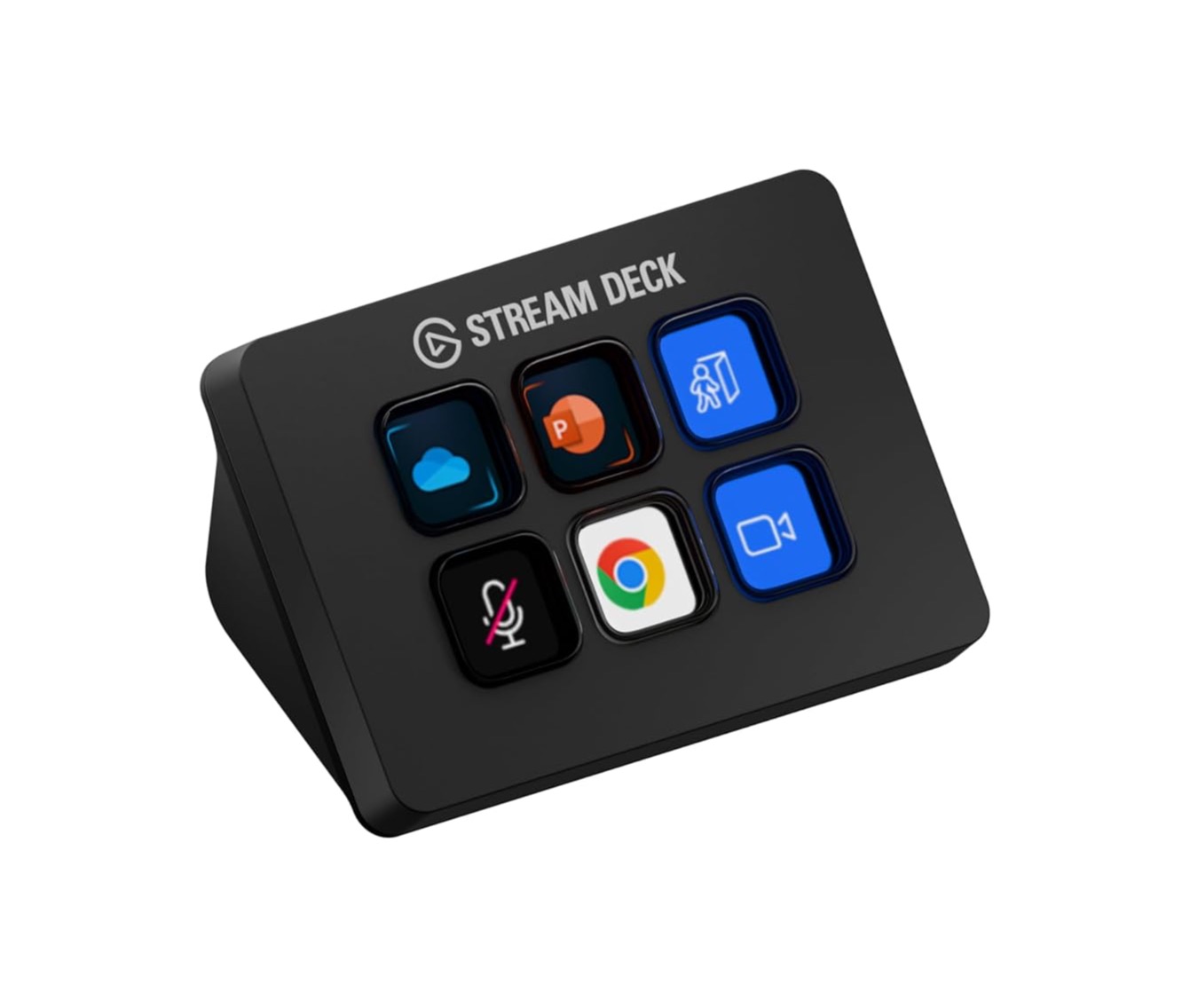 Mini
Mini
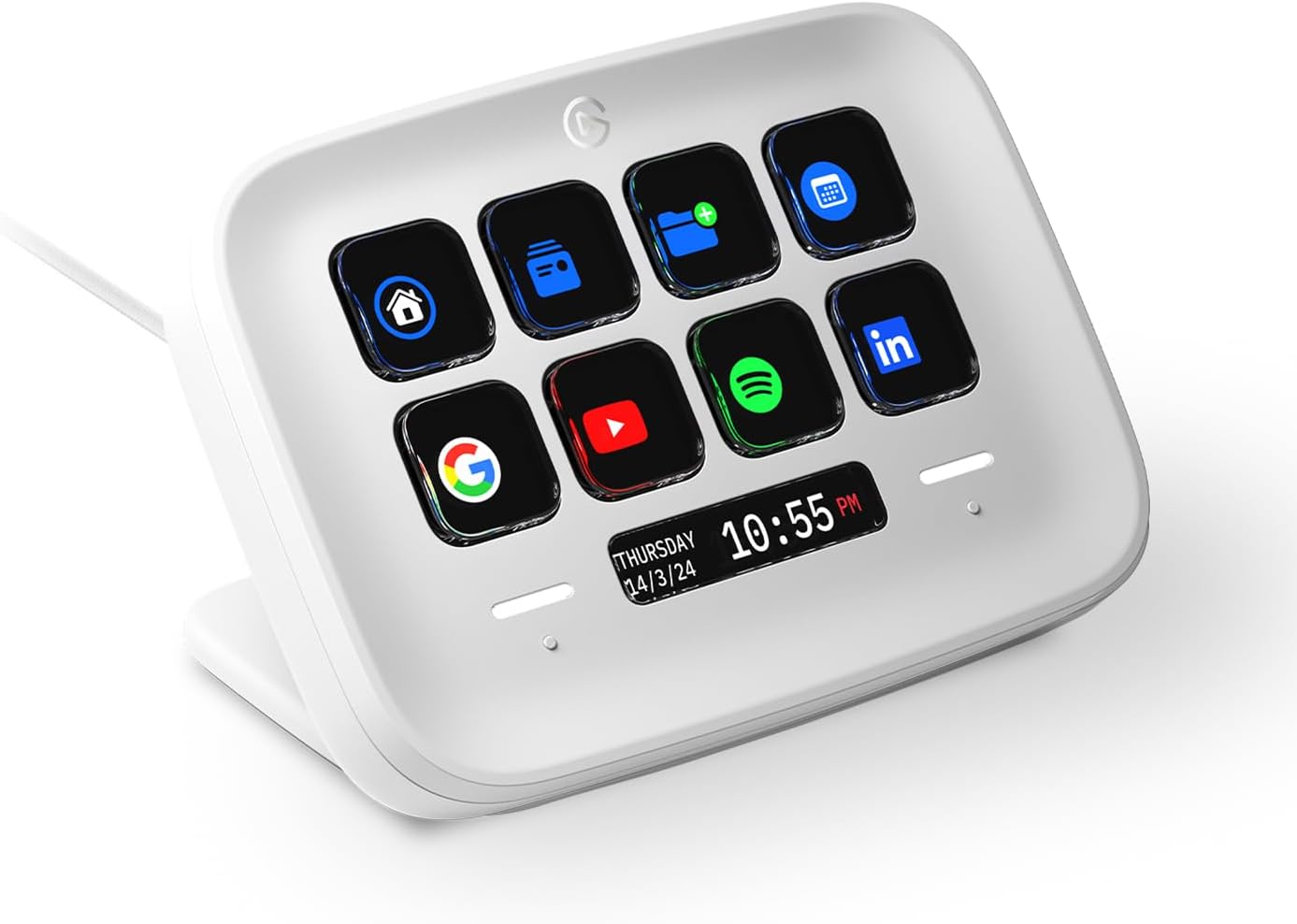 Neo
Neo
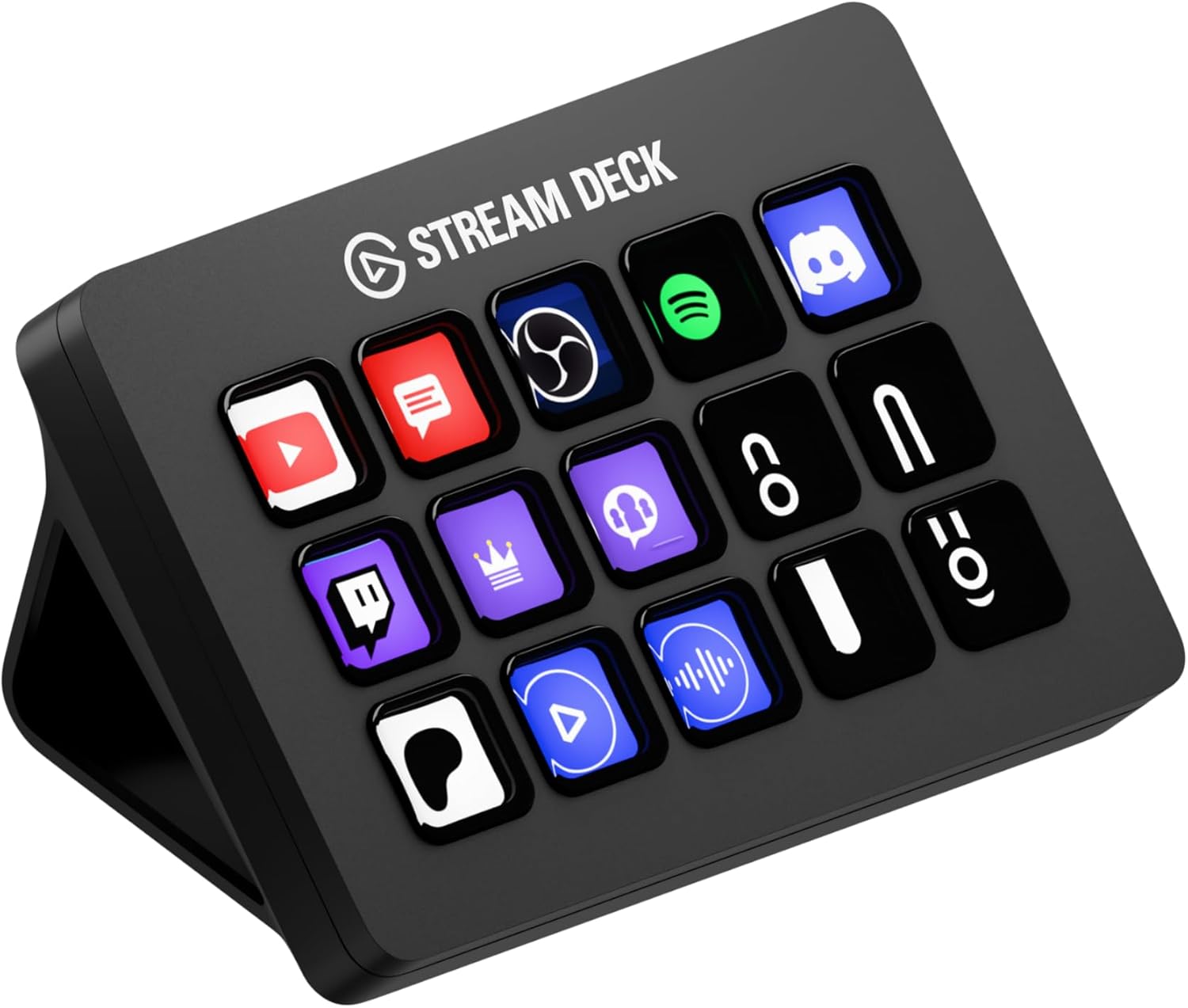 MK.2
MK.2
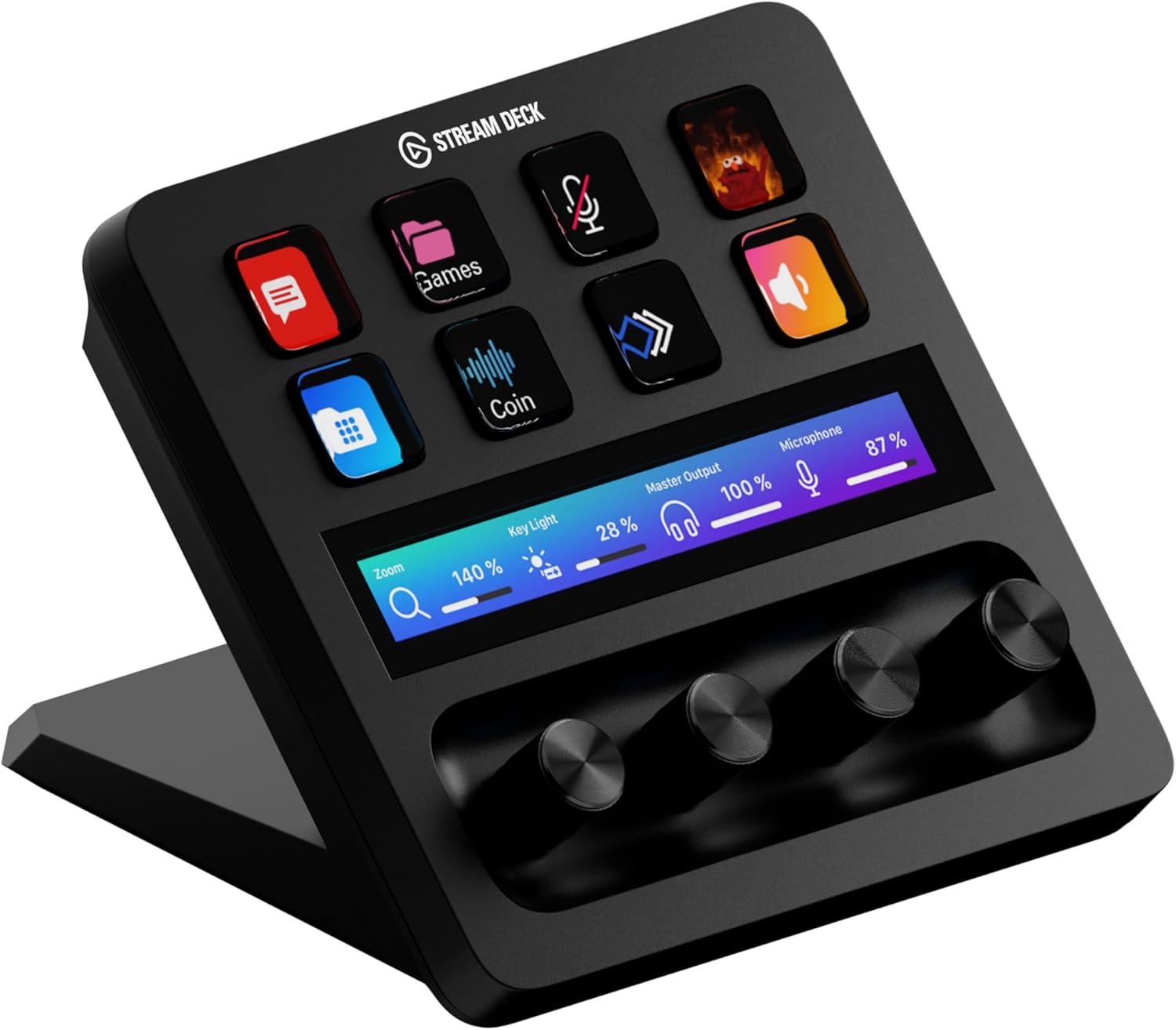 +
XL
+
XL
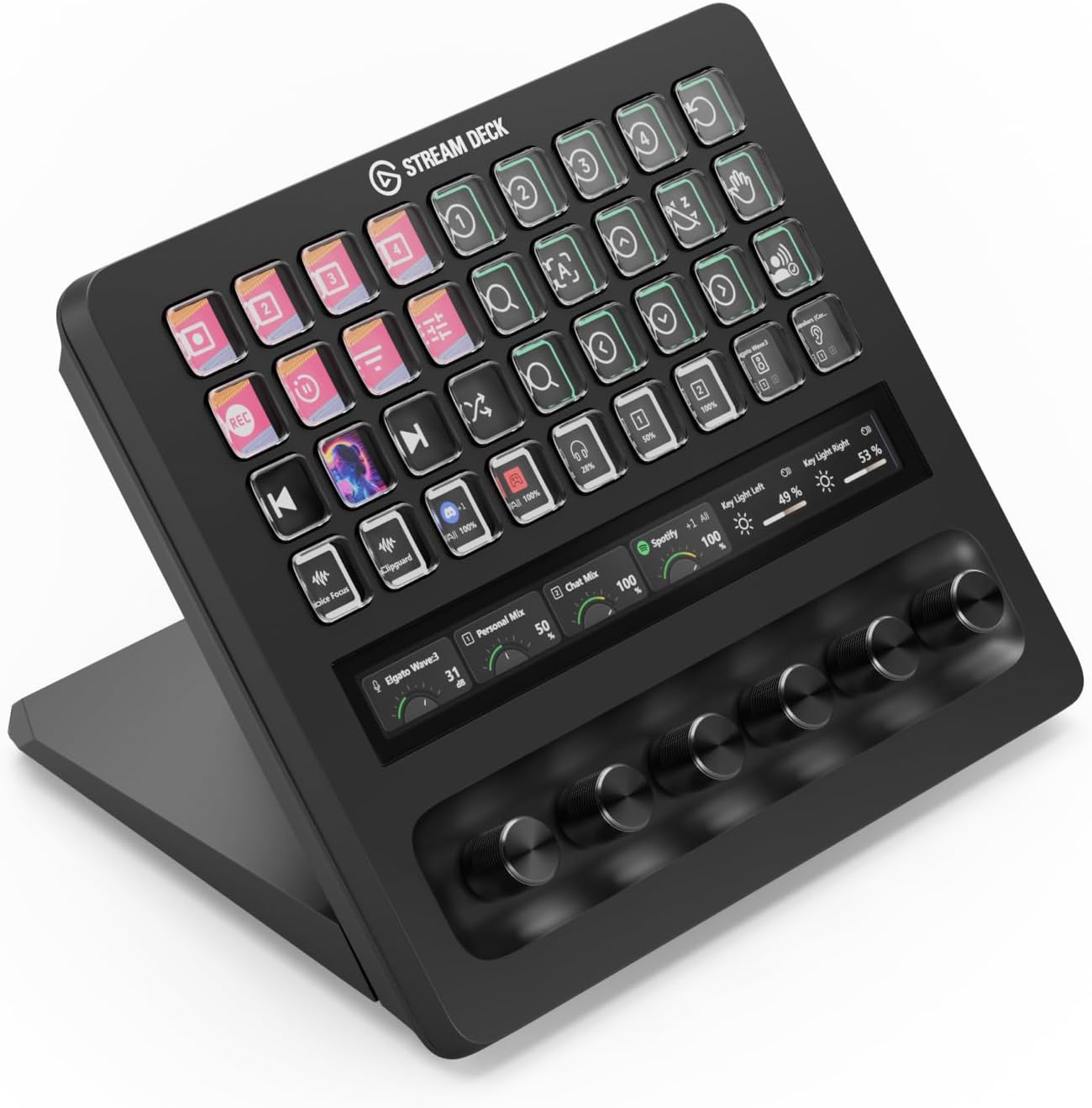 + XL
+ XL
Technically a Stream Deck is one big LCD screen split into regions, so each button has its own screen section. Each button is transparent so you can see what’s displayed behind it. Here is a YouTube video of a tear down of a Stream Deck.
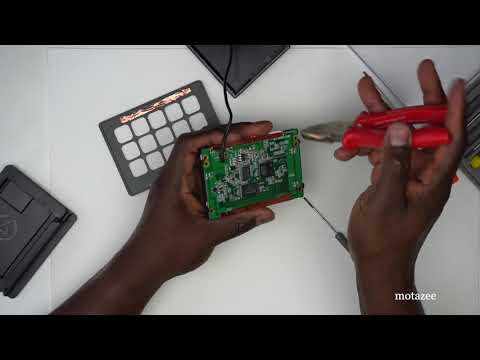 Tear down of a Stream Deck
My introduction with a Stream Deck
I looked at the keypads available on the market for triggering frequently used scripts. They connect via Bluetooth or USB and have between 3 and 32 buttons. Some devices have an additional touch display or dial knobs. I also found the wide range of Elgato Stream Deck devices. They are mainly used by streamers to quickly switch scenes and trigger actions during live streams, but they also work well for any other computer users.
The big advantage of these Elgato devices is that each button has its own display, which can be completely customized. You do not have to remember what each button does. You can also create multiple different action pages, multiplying the actions you can trigger with the same number of buttons. I found many integrations and SDK features for building your own actions. This makes it a cool gadget to play with.
Looking at the different models, I liked the new scissor keys on the new MK.2 15-button version, but the 32-button version gave me more direct controls without switching between pages, so I went for this one to give it a shot!
Stream Deck MK.2, 15 buttons
Stream Deck XL, 32 buttons
Look here for all available models.
Downloadable button actions
I created a separate page with downloadable buttons for all kinds of actions and applications.
Actions for Claude, video calls, calendar items, website shortcuts, GitHub, Gmail, Home Assistant, event countdowns, etc…
Click here to go to my page with many (developers) button action examples like Claude, Spotify, Gitlab, Google Meet, Home Assistant, etc..
 An example of how a Stream Deck button page could look.
Stream Deck models comparison
Elgato (part of Corsair) sells a whole family of Stream Decks. They all run on the same Stream Deck software. They mainly differ in the number of buttons, dials, and displays.
This table provides an overview of the different models. Scroll to the right to see them all.
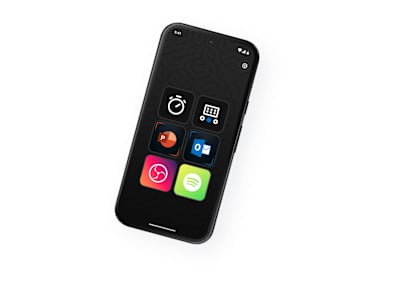
| Stream Deck models | Mini | Neo | MK.2 | MK.2 Scissor Keys | + | XL | + XL | Mobile | Modules |
|---|---|---|---|---|---|---|---|---|---|
| Image |  |
 |
 |
 |
 |
 |
 |
 |
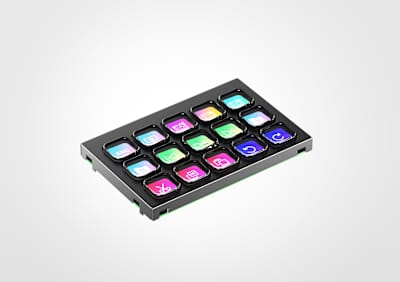 |
| Buttons | 6 | 8 + 2 touch points | 15 | 15 | 8 | 32 | 36 | 15 or 32 (virtual) | 6 or 15 |
| Extra display | No | Yes, “info bar” | No | No | Yes, LCD Infobar touch strip | No | Yes, LCD Infobar touch strip | n/a | No |
| Dials | 0 | 0 | 0 | 0 | 4 (rotate + push) | 0 | 6 (rotate + push) | 0 | 0 |
| Size (D×W×H) | 84 × 60 × 58 mm | 107 × 78 × 26 mm | 118 × 84 × 25 mm (without stand) | 118 × 84 × 25 mm (without stand) | 140 × 138 × 110 mm | 34 × 182 × 112 mm (without stand) | 205 × 147 × 175 mm | Your phone | Depends on the enclosure |
| Purpose | Cheapest entry model, for a handful of fixed actions | Budget mid-range with a built-in stand, page switching via the two touch points | The classic all-rounder with the original clicky keys | Same board as the MK.2 but with low-travel scissor keys: quieter and softer to press | Best choice when you need analog control: volume, brightness, EQ, timeline scrubbing, light dimming | Maximum direct controls without switching pages, my choice for development shortcuts | The 2026 flagship, “pro control surface” for broadcast studios and editing bays | Subscription app for iOS/Android, handy to try out the software before buying hardware | OEM/DIY boards to build the keypad into your own desk or panel |
| Product page | Elgato | Elgato | Elgato | Elgato | Elgato | Elgato | Elgato | Elgato | Elgato |
| Buy US* | Amazon US | Amazon US | Amazon US | Amazon US | Amazon US | Amazon US | Amazon US | Android / iOS | |
| Buy NL* | Amazon NL | Amazon NL | Amazon NL | Amazon NL | Amazon NL | Amazon NL | Amazon NL | Android / iOS |
See all these models together on this Amazon US* or Amazon NL* page.
* Links on this page may be affiliate links. You pay the normal price while supporting my blog.
Alternative solutions
Logitech MX Creative Console
Logitech has the MX Creative Console with a 9-button keypad and a dial. Designers are its target group.

 Logitech MX Creative Console on Amazon
Logitech MX Keypad
Logitech recently introduced a small 9-button keypad, also aimed at software developers. You get a 3-month free GitHub Copilot Pro+ subscription with it.
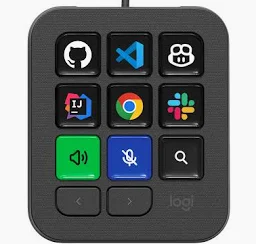
Logitech MX Keypad on Logitech.com
Codex Creator Micro
A keypad created by OpenAI, focused on the Codex AI agent. It contains 13 mechanical switches, 1 touch sensor, 1 rotary encoder, 1 joystick and light-up keys to indicate the state of the different AI agents.
Codex Creator Micro on Open AI [out of stock]
My advised model for a software developer
The 15-button MK.2 and the 32-button XL are the most interesting models for me as a software developer: they have many buttons for a full set of shortcuts without switching pages to reach buttons for all kinds of apps.
My personal ideal model
If I could create my ideal Elgato Stream Deck, it would use the 32-button XL as its base, with the following modifications:
- Scissor keys: silent, with a consistent click across each button.
- Matte button finish: the current buttons reflect all the light.
- A brighter backlit screen: images can look a little pale.
- A walnut-look surround for the buttons to match my other desk accessories.
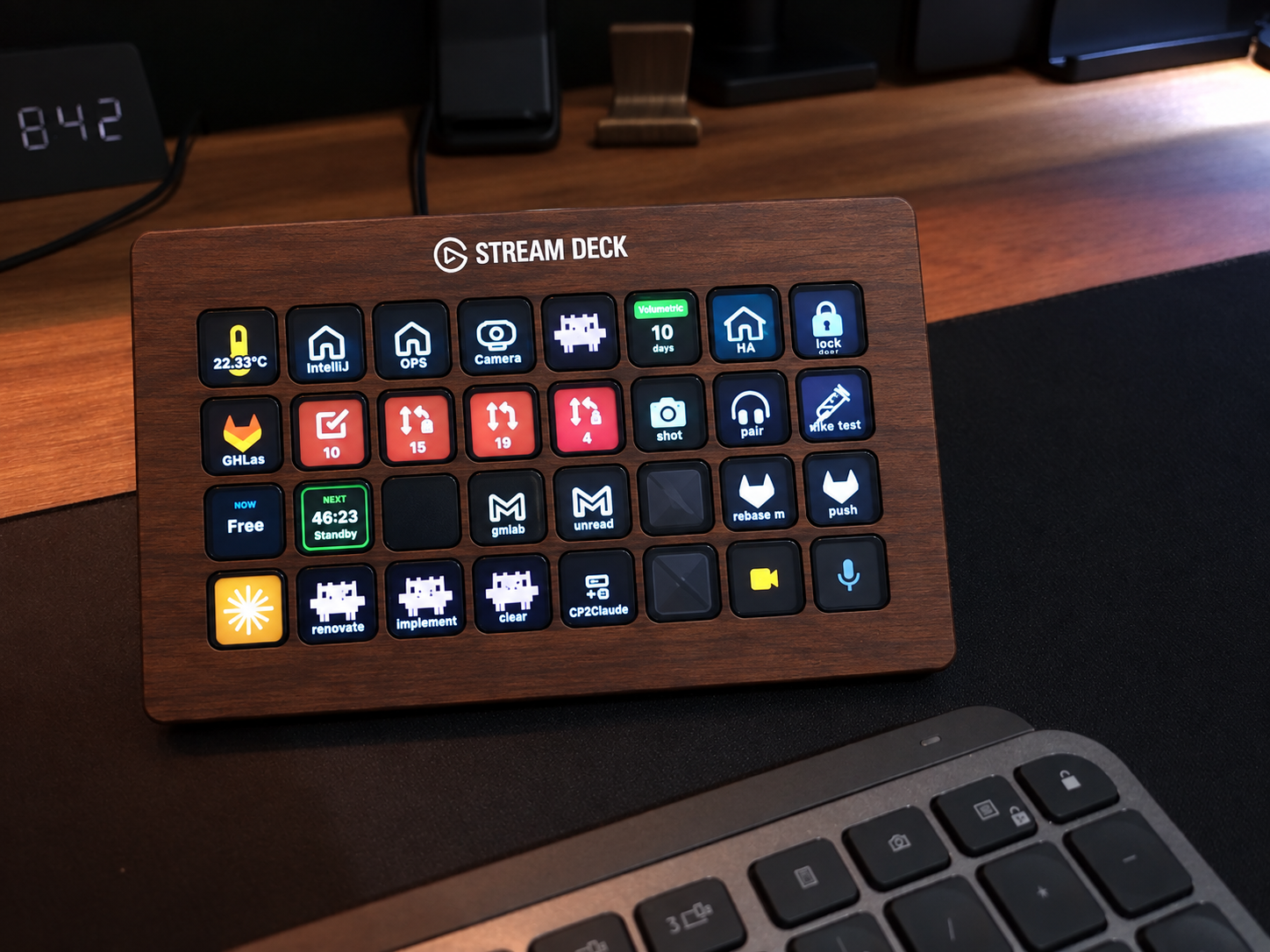 AI-generated image of how my ideal Stream Deck model should look.
I hope you got inspired, and maybe you now also see this as a product you didn’t know you needed.
Or do you already have all the actions and information directly available with your normal keyboard and on your screen?
See here which button actions I use on my Stream Deck like Claude, Spotify, Gitlab, Google Meet, Home Assistant, etc.
^^ Top | Homepage | Best Buy Tips | Automation Ideas | Blog posts | Sitemap