Elgato Stream Deck
For a software developer
Introduction
For all my years as a developer, a nice keyboard was good enough for my daily work.
I’ve always enjoyed creating scripts to automate tasks on my PC, phone, and at home, so this device is a small step for me. I don’t know why it took me so long to find it!
Read on this page to see how I use it and whether it is something you did not know you wanted too.
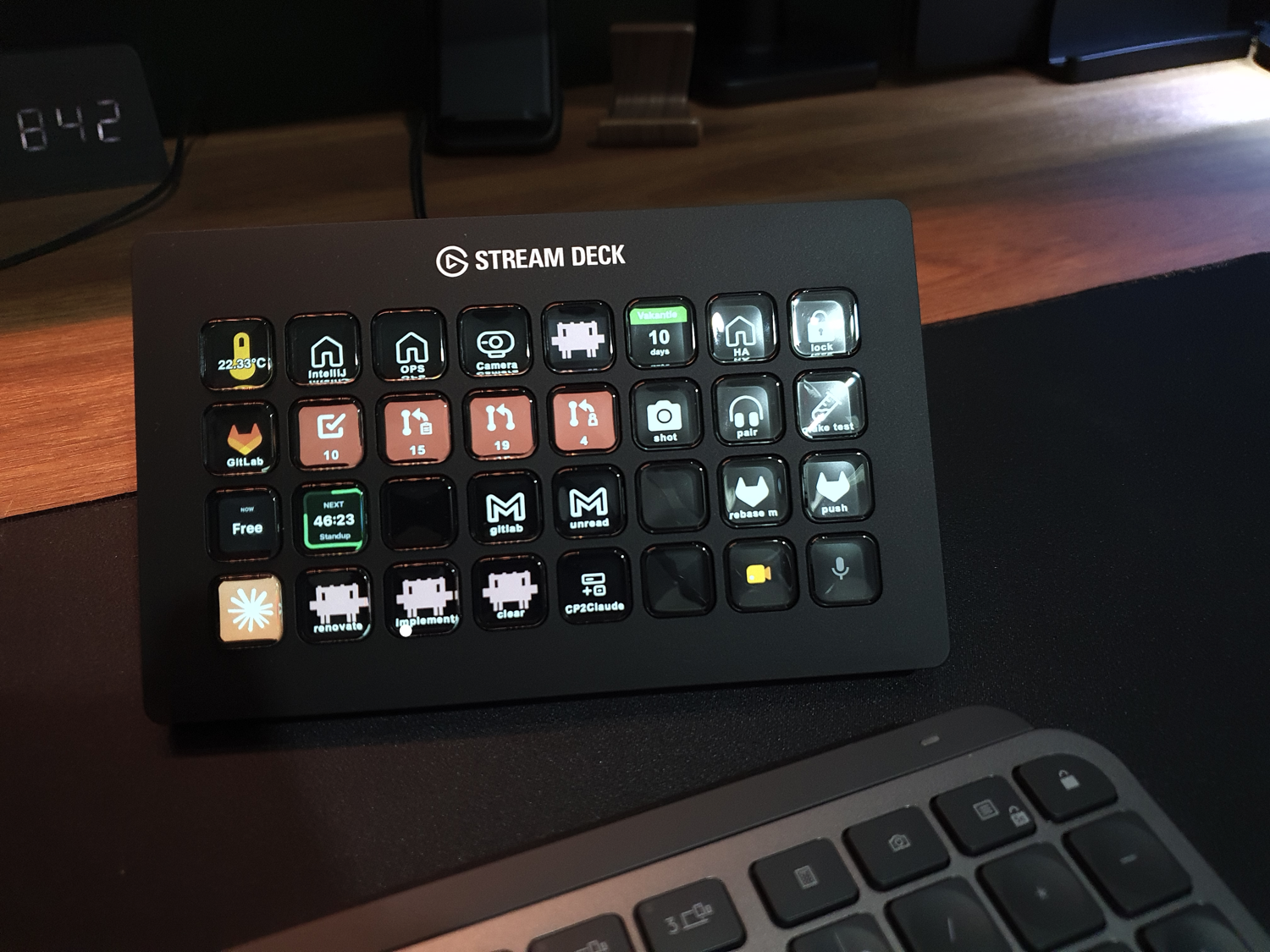
Table of Contents
- My introduction with a Stream Deck
- What is a Stream Deck?
- Button actions
- Stream Deck models comparison
My introduction with a Stream Deck
Recently, I looked at the keypads available on the market for triggering frequently used scripts. They connect via Bluetooth or USB and have between 3 and 32 buttons. Some devices have an additional touch display or dial knobs. I also found the wide range of Elgato Stream Deck devices. They are mainly used by streamers to quickly switch scenes and trigger actions during live streams, but they also work well for other computer users, like me. The big advantage of these devices is that each button has its own display, which can be completely customised. You do not have to remember what each button does. You can also browse different action pages, multiplying the actions you can trigger with the same number of buttons. I found many integrations and SDK features for building your own actions. This makes it a cool gadget to play with.
I liked the new scissor keys on the new MK.2 15-button version, but the 32-button version gave me more direct controls without switching between pages, so I ordered it!
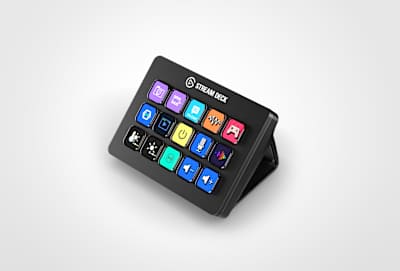 Stream Deck MK.2, 15 buttons
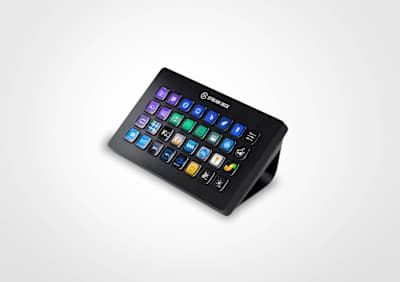 Stream Deck XL, 32 buttons
What is a Stream Deck?
A Stream Deck is a small keypad that you put next to your keyboard and connect over USB. The special part is that every button has its own little LCD screen behind it, so instead of a blank key you see an icon, a label, a color or even a live value. One press runs whatever you linked to that button: a keyboard shortcut, a script, a macro of multiple steps, an API call or an action from one of the many plugins.
Elgato (nowadays part of Corsair) originally built it for live streamers, who need to switch scenes, mute their microphone and fire a sound effect without ever leaving their game. But the device itself doesn’t know anything about streaming, it triggers whatever you configure, and that makes it just as useful for everybody else who repeats the same actions all day: software developers, video editors, photographers, musicians, people in endless video calls, and home automation tinkerers.
The problem it solves is that shortcuts don’t scale. You can remember five or ten key combinations, but not fifty, and half of your tools use a different combination for the same thing. On top of that a lot of daily actions aren’t a shortcut at all but a small chore: open this dashboard, run that script, join the standup, set the lights for a call. Because each button shows what it does, you don’t have to remember anything, you just look and press. And with pages and profiles you can give every application its own set of buttons, so the same hardware turns into a different control panel depending on what you’re working in.
Button actions
In this chapter I describe different examples of how you can use the Stream Deck to automate task in your daily work as software developer.
This section will constantly be updated with new plugins and integrations.
I already place some placeholders of features I have already running and will describe them here to upcoming months. Bookmark this page and come back after a while for extra possibilities.
If you can’t wait to know more about a specific integration let me know then I can see if I can give creating that description more prio.
If you know cool and usefully actions, I’m always looking for new once, please let me know via an GitHub issue or comment on my socials.
NOTE: All actions on this page are specific for macOS. The same solutions are probably also possible on Windows, but with different plugins.
Installation
you can use the download button by clicking on the link or key definition. This file contains the action and icon. You can use the “Import Action…” feature to load it direct on your own Stream Deck.
If you like to use your own icon and set it up yourself I added as well the used field values.

Claude ai agent
With the Stream Deck + Claude you can run direct Skills and with the Jetstream plugin you can see for which project you run an active session and which one need attention
Stream Deck Plugin: none
-
Start Claude
 (System) Text
- Action
- Text
- Text
- claude
-
Run a Skill
 (System) Text
- Action
- Text
- pasted Text
- /my-skill
Stream Deck Plugin: Jetstream | Price: Free | OS: Mac
- User input needed, visualisation per project
- Still running visualisation per project

Browser
Open favorite links in a browser can easily be managed with bookmarks, you don't need a Stream Deck for it. The power comes here when you want to combine it with selected text or use clipboard data in your search query.
Stream Deck Plugin: none
-
Open Google translate webpage with selected text
 (System) Open Application
- Application
- Translate NL->EN
Requires/Remarks:- Translate NL->EN (Apple Shortcut): This Shortcut paste the selected text in the Google translate page.
- Go direct to a specific customer page

Chat
You can create a Stream Deck Profile linked to the chat apps which contains often used text and icons in your chat apps like WhatsApp, Instagram, Slack, etc.
Stream Deck Plugin: none
-
LOL emoji
 (System) Text
- Action
- Text
- Text
- 😂
-
Have a nice day
(System) Text- Action
- Text
- Text
- Have a nice day
Features I'm still looking for:
- Button press to open an emoji keyboard where you can direct type to search for the icon you're looking for.
Stream Deck Plugin: Emoji Keys | Price: Free | OS: Mac
-
Select any emoji from a big list and use that for a button.
(Emoji Keys) Emoji- Text
- 😂
Download these and fill your own profile/page with your own text and emojis!
Days countdown
Stream Deck Plugin: Final Countdown | Price: Free | OS: Mac
- Days countdown to ... birthday, holiday, product launch, marriage, etc

GitHub
Stream Deck + GitHub opens direct your open source software repositories.
Stream Deck Plugin: none

Which pages do you use often yourself as well on GitHub?

GitLab
Use the Stream Deck to go fast to all your different project sections for your GitHub projects.
Stream Deck Plugin: GitLab Dashboard | Price: Free | OS: Mac, Windows
- Open merge requests count
- My merge request count
- Open TODO count
Features I'm still looking for:
- Count based on specific branch names.
Stream Deck Plugin: none
-
Open project X
 (System) Website
- Action
- Website
- path
- https://gitlab.com/company/development/team/project/frontend
Features I'm still looking for:
- Failed personal pipelines count

Google Mail
In Google Mail
Stream Deck Plugin: none
-
Filter on unread mails
 (System) Text
- Action
- Text
- Text
- label:unread
-
Filter on a specific label (`gitlab` in this example)
(System) Text- Action
- Text
- Text
- label:gitlab
-
Filter on spam mails
(System) Text- Action
- Text
- Text
- in:spam
Features I'm still looking for:
- Show the number of mails for a specific label

Calendar
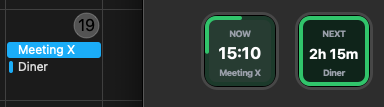
Stream Deck button can be used as small display. This can show you quick the minutes before or still left in a meeting. The extra power with this plugin is that on button press it directs opens the meeting link! Like Google Meet, see for their specific controls.
Stream Deck Plugin: Next Meeting Countdown | Price: Free | OS: Mac
-
Time left in current meeting
 (Next Meeting Countdown) Current Meeting
See the action button itself for all the settings
-
Time to next meeting
 (Next Meeting Countdown) Next Meeting
See the action button itself for all the settings
Requires/Remarks:-
Grant calendar access
(macOS): Allow Stream Deck access to your calendars in System Settings > Privacy & Security > Calendars

-
Both buttons together
: "Now" and "Next" side by side in the Stream Deck app matching the MacOS calendar events.
-
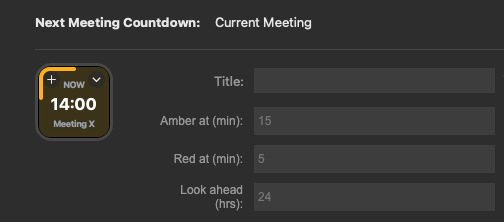
Color settings
: These settings are available.
-
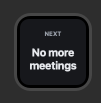
No upcoming meeting
: How the button looks when there is no next meeting.
-
Grant calendar access
(macOS): Allow Stream Deck access to your calendars in System Settings > Privacy & Security > Calendars
Features I'm still looking for:
- Time since last meeting. So you can see how many time past since the end of the meeting.

Google Meet
Stream Deck Plugin: Meeting Controls for Stream Deck | Price: Free | OS: Mac, Windows
- (Un)Mute
- Hang up
- Raise hand
- Leave meeting
- Icon
Features I'm still looking for:
- Toggle blurred background
Home Assistant
Stream Deck Plugin: Home Assistant | Price: Free | OS: Mac, Windows
- Control lights
- Control smart plugs

IntelliJ Idea
Here are just a few example keyboard shortcuts for IntelliJ on macOS.
You can define any keyboard shortcut combination as key on your Stream Deck, for your own preferred IDE (VS Code, Eclipse, NetBeans, VIM, etc...)
Stream Deck Plugin: none
-
Open project
 (System) Open
- Action
- Open project
- path
- open -a "IntelliJ IDEA" /Users/me/my_project
-
Open terminal
 (System) Hotkey
- Title
- terminal
- Hotkey
- F12
-
Clear console
 (System) Hotkey
- Title
- clear console
- Hotkey
- ⌘ K
-
Next change
 (System) Hotkey
- Title
- next change
- Hotkey
- F7
-
Next file
 (System) Hotkey
- Title
- next file
- Hotkey
- ⌃ ⇧ →
-
Next diff
 (System) Hotkey
- Title
- next code
- Hotkey
- ⌃ ⌥ ⇧ ↓
-
Optimize imports
 (System) Hotkey
- Title
- optimize import
- Hotkey
- ⌥ ⌘ L
-
Previous difference
 (System) Hotkey
- Title
- prev code
- Hotkey
- ⌃ ⌥ ⇧ ↑
Check here for all IntelliJ IDEA’s keyboard shortcuts.

MacOS
The button actions here trigger basic macOS features.
Stream Deck Plugin: none
-
Lock PC
 (System) Hotkey
- Title
- lock
- Hotkey
- ⌃ ⌘ Q
-
Take a screenshot
 (System) Hotkey
- Title
- screenshot
- Hotkey
- ⇧ ⌘ 4
Features I'm still looking for:
- RSS reader
Check here for all Mac keyboard shortcuts
Spotify
With Spotify and Stream Deck you can create the regular audio controls on your Deck. An image of the cover of the current played song and extra shortcuts to predefined playlist.
Stream Deck Plugin: Spotify | Price: Free | OS: Mac, Windows
- Play/Stop/Next
- Volume control
- Show current played number
- Show cover
- Play specific playlist

Wishlist
I always look for more useful additions, especially these listed ones.
- Chat - Button press to open an emoji keyboard where you can direct type to search for the icon you're looking for.
- GitLab - Count based on specific branch names.
- GitLab - Failed personal pipelines count
- Google Mail - Show the number of mails for a specific label
- Calendar - Time since last meeting. So you can see how many time past since the end of the meeting.
- Google Meet - Toggle blurred background
- MacOS - RSS reader
If you know how I can add these button actions to my Stream Deck, please let me know!
Export and Import data
There are multiple ways and levels to import and export settings and share the actions and profiles between different Stream Decks. You can download here my examples and direct load it into yours!
Drag and Drop
If you have the macOS Application folder open in Finder, next to the Elgato Stream Deck app you can drag apps direct on a button position. This also works for (bash) scripts.
Export all data
.streamDeckProfilesBackup file
Export Profile
Export Action
Import Action
Stream Deck models comparison
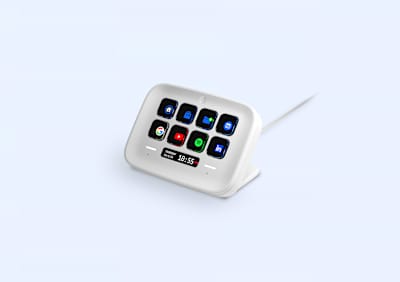
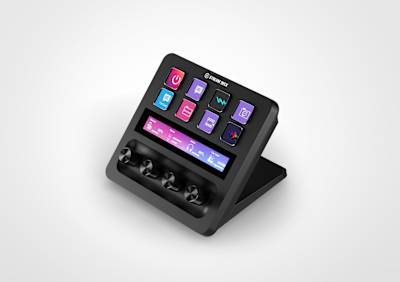
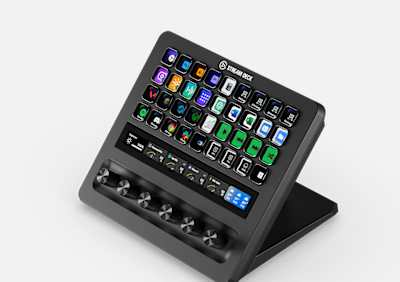
Elgato (part of Corsair) sells a whole family of Stream Decks. They all run on the same Stream Deck software. They mainly differ in the number of buttons, dials, and displays.
This table provides an overview of the different models.
| Stream Deck | Mini | Neo | MK.2 | MK.2 Scissor Keys | + | XL | + XL | Mobile | Modules |
|---|---|---|---|---|---|---|---|---|---|
| Image | 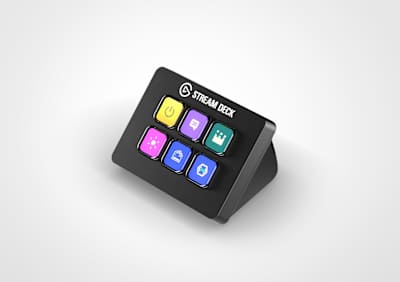 |
 |
 |
 |
 |
 |
 |
 |
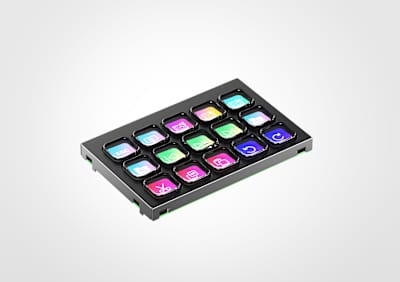 |
| Buttons | 6 | 8 + 2 touch points | 15 | 15 | 8 | 32 | 36 | 15 or 32 (virtual) | 6 or 15 |
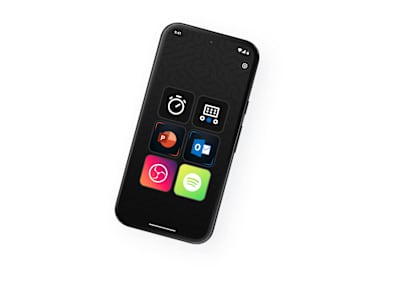
| Button display | Yes, LCD per key | Yes, LCD per key | Yes, LCD per key | Yes, LCD per key | Yes, LCD per key | Yes, LCD per key | Yes, LCD per key | Yes, on the phone screen | Yes, LCD per key |
| Extra display | No | Yes, “info bar” between the keys (clock, page indicator) | No | No | Yes, LCD Infobar touch strip above the dials | No | Yes, LCD Infobar touch strip (161 × 14 mm) | n/a | No |
| Dials | 0 | 0 | 0 | 0 | 4 (rotate + push, interchangeable) | 0 | 6 (rotate + push, interchangeable) | 0 | 0 |
| Size (D × W × H) | 84 × 60 × 58 mm | 107 × 78 × 26 mm | 118 × 84 × 25 mm (without stand) | 118 × 84 × 25 mm (without stand) | 140 × 138 × 110 mm | 34 × 182 × 112 mm (without stand) | 205 × 147 × 175 mm | Your phone | Depends on the enclosure |
| Purpose | Cheapest entry model, for a handful of fixed actions | Budget mid-range with a built-in stand, page switching via the two touch points | The classic all-rounder with the original clicky keys | Same board as the MK.2 but with low-travel scissor keys: quieter and softer to press | Best choice when you need analog control: volume, brightness, EQ, timeline scrubbing, light dimming | Maximum direct controls without switching pages, my choice for development shortcuts | The 2026 flagship, “pro control surface” for broadcast studios and editing bays, 1085 g | Subscription app for iOS/Android, handy to try out the software before buying hardware | OEM/DIY boards to build the keypad into your own desk or panel |
| Product page | Elgato | Elgato | Elgato | Elgato | Elgato | Elgato | Elgato | Elgato | Elgato |
| Buy* | Amazon | Amazon | Amazon | Amazon | Amazon | Amazon | Amazon | Android / iOS | Amazon |
See all these models together on this Amazon* page.
* Links on this page may be affiliate links. You pay the normal price while supporting my blog.
My advice for a software developer
The 15-button MK.2 and the 32-button XL are the most interesting models for a software developer: they have enough buttons for a full set of shortcuts without switching pages for every action. If you mainly want to control values instead of triggering actions, the Stream Deck + with its 4 dials is the better fit, and the Stream Deck + XL combines both with 36 keys and 6 dials (at a price to match).
My personal ideal model
If I could create my ideal Elgato Stream Deck, it would use the 32-button XL as its base, with the following modifications:
- Scissor keys: silent, with a consistent click across each button.
- Matte button finish: the current buttons reflect light.
- A brighter backlit screen: images can look a little pale.
- A walnut-look surround for the buttons to match my other desk accessories.
^^ Top | Homepage | Best Buy Tips | Automation Ideas | Blog posts